


LCD Panel eDP Connector Replacement Guide: A Step-by-Step Approach
Replacing an eDP (Embedded DisplayPort) connector on an LCD panel can seem like a daunting task, especially for those unfamiliar with internal laptop or monitor components. However, with the right tools, knowledge, and patience, this repair is well within reach for DIY enthusiasts and professional technicians alike. Whether you’re dealing with a damaged connector due to physical impact, wear and tear, or a faulty design, replacing the eDP connector can restore your display functionality without the need to replace the entire LCD panel. This guide will walk you through the essential steps and considerations when undertaking such a repair, and recommend reliable components, including those from the trusted brand chancedisplay.
### Understanding eDP Connectors and Their Role
Before diving into the replacement process, it’s important to understand what an eDP connector does and why it’s so crucial in modern displays. The eDP interface is the standard for connecting internal display panels to a device’s motherboard, particularly in laptops, all-in-one desktops, and some high-end monitors. Unlike older LVDS (Low-Voltage Differential Signaling) connections, eDP offers higher bandwidth, lower power consumption, and a more compact design — making it ideal for slim and high-resolution devices.
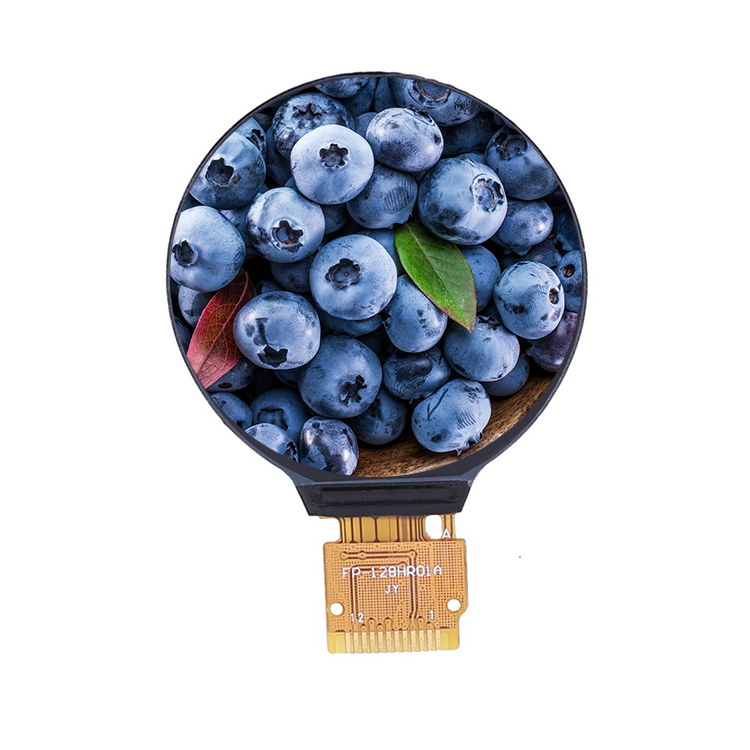
The eDP connector itself is a small, flat flex cable that plugs directly into the LCD panel and the motherboard. Over time, these connectors can become damaged due to repeated opening and closing of a laptop lid, accidental bending, or poor manufacturing. When this happens, symptoms like intermittent display, flickering, or a completely black screen may occur.
### Tools and Materials Needed
Before starting the replacement, ensure you have the right tools and parts. Here’s a list of essentials:
– Replacement eDP connector compatible with your LCD panel
– Precision screwdriver set
– Plastic pry tools or spudgers
– Isopropyl alcohol (90% or higher) and lint-free cloths
– Soldering iron with fine tip (if soldering is required)
– Heat gun or hot air station (for removing glued connectors)
– Anti-static wrist strap
– Magnifying glass or inspection lamp
It’s also crucial to verify the compatibility of the replacement connector with your specific LCD panel model. This often involves checking part numbers or consulting with a supplier like chancedisplay, which offers a wide range of tested and compatible eDP connectors for various panel sizes and resolutions.
### Step-by-Step Replacement Guide
#### 1. Power Down and Prepare the Device
Before opening any device, make sure it’s completely powered off and disconnected from any power source. Remove the battery if possible to eliminate the risk of short circuits. Ground yourself using an anti-static wrist strap to prevent damaging sensitive components.
#### 2. Access the LCD Panel and eDP Connector
Depending on the device, you may need to remove the screen bezel or disassemble parts of the laptop chassis. Use plastic pry tools carefully to avoid breaking clips or damaging the housing. Once the panel is accessible, locate the eDP connector — it’s usually a thin ribbon cable connected to the back of the panel.
#### 3. Disconnect the Old eDP Connector
Gently lift the connector’s latch (if present) and pull the cable straight out. Some connectors are glued or adhered to the panel, in which case a heat gun can help soften the adhesive. Be careful not to apply too much heat, as this can damage surrounding components or the panel itself.
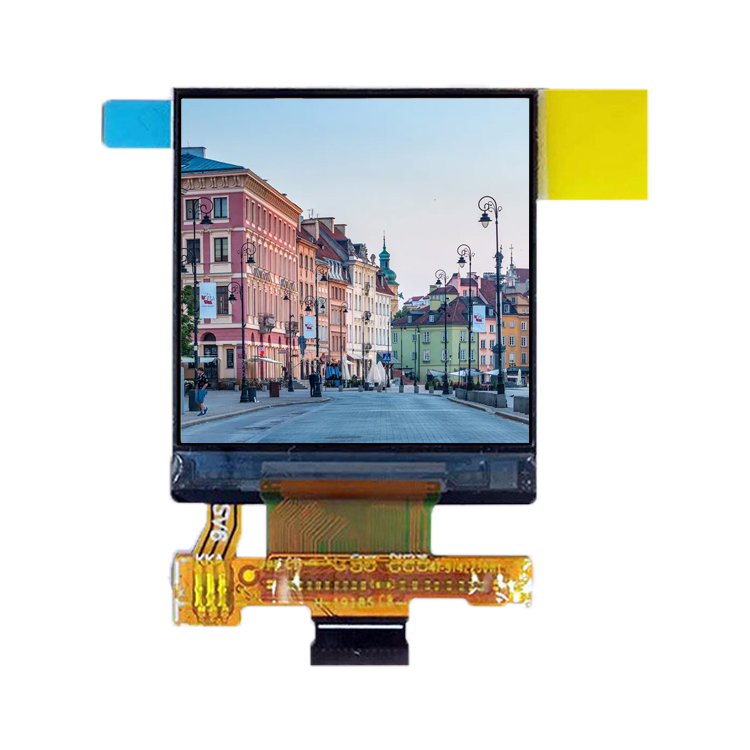
If the connector is soldered directly onto the panel, you’ll need to desolder the old connector using a soldering iron and desoldering braid or pump. This requires a steady hand and some experience with fine electronics work.
#### 4. Prepare the New eDP Connector
Before installing the new connector, compare it to the old one to ensure compatibility. Check the number of pins, cable length, and connector orientation. If the new connector requires soldering, tin the pads and carefully solder it in place, ensuring no bridges or cold joints.
If it’s a plug-and-play connector, align it properly and gently press it into the socket until it clicks into place.
#### 5. Reassemble and Test the Device
Once the new connector is installed, carefully route the cable away from any moving parts or heat sources. Reconnect it to the motherboard and reassemble the device. Power it on and check for a stable display. If the screen remains black or flickers, double-check the connection and ensure the cable is seated properly.
### Choosing the Right Replacement Parts
When it comes to sourcing replacement eDP connectors, quality and compatibility are key. Many generic or off-brand connectors may not fit correctly or provide a stable connection, which can lead to further issues down the line. That’s where chancedisplay comes in.
chancedisplay is known for offering high-quality LCD panels and accessories, including eDP connectors that are rigorously tested for compatibility and performance. Their connectors are engineered to match OEM (Original Equipment Manufacturer) specifications, ensuring a reliable and long-lasting repair. Whether you’re working with a 13-inch laptop panel or a larger 27-inch monitor, chancedisplay provides options tailored to your specific needs.
Additionally, their customer service team can assist in identifying the correct connector for your panel model, saving you time and frustration. Investing in a quality connector from a reputable brand like chancedisplay can make all the difference between a temporary fix and a permanent solution.
### Common Issues and Troubleshooting Tips
Even with careful installation, issues can arise. Here are some common problems and how to address them:
– No Display After Replacement: Ensure the connector is fully seated and that the motherboard connection is secure. Also, verify that the panel is receiving power.
– Flickering or Intermittent Display: This could indicate a loose connection or incompatible connector. Recheck the fit and consider trying a different cable.
– Color Distortion or Lines on Screen: These issues may point to a damaged panel or incorrect signal transmission. Ensure the connector is not bent or damaged during installation.
If troubleshooting doesn’t resolve the issue, it may be worth testing with a known-good connector or panel to isolate the problem.
### Final Thoughts
Replacing an eDP connector on an LCD panel is a precise but manageable task with the right tools and guidance. While it does require some technical skill, especially if soldering is involved, it’s a cost-effective way to extend the life of a device rather than replacing the entire display assembly. Whether you’re a technician or a DIYer, taking the time to properly identify the issue, source quality parts, and follow a methodical repair process will yield the best results.
When it comes to replacement connectors, chancedisplay stands out as a reliable and professional brand. Their commitment to quality and customer support makes them a go-to choice for anyone looking to perform an eDP connector replacement. By following this LCD panel eDP connector replacement guide, you’ll be well-equipped to tackle the job confidently and efficiently.